Not that the intent is to be “Big Brother” or anything like that, but I recently setup up Google Assistant to tell me the approximate number of minutes my spouse is away from home. Why would anyone want this? People might ask if we don’t trust each other and think that we only want to check up on each other. Really that is the farthest from the truth. I love my wife and have complete trust in her.
In our relationship it is really just a logistical thing. My wife works different schedules so comes home at different times, usually leaving a little late. I sometimes will get home a little late as well. When one of us gets home before the other we like to cook dinner for each other. But how do we know when to start dinner? Or how do we gauge when dinner should roughly be finished so that it finishes about when they are supposed to be home? We could just call each other. And we do. But sometimes one of us is talking to someone else or maybe there are times we don’t want to bother one another. Who wants to hear your significant other demanding to know when you’ll be home everyday?
So how does one ask Google Assistant when your spouse will be home?
Well… hopefully you have some programming knowledge. Also hopefully you have an Android phone.
What You’ll Want
- Android Phone
- Tasker installed on aforementioned phone
- An endpoint url with HTTPS
- An account on DialogFlow
Putting it Together
I’ll be honest. This was my first project on DialogFlow. I started experimenting with it when it was api.api, but struggled a bit with trying to get things started. I forgot about it for maybe about 6 months and thought I’d take a second look.
Install Tasker
Install Tasker on the phones that you want to track.
Create a Profile and call it “TrackLocation” using the Time context. Remove the “From” and “Until” by tapping on each. Then set “Every” to 10 minutes, or whatever your preference is.
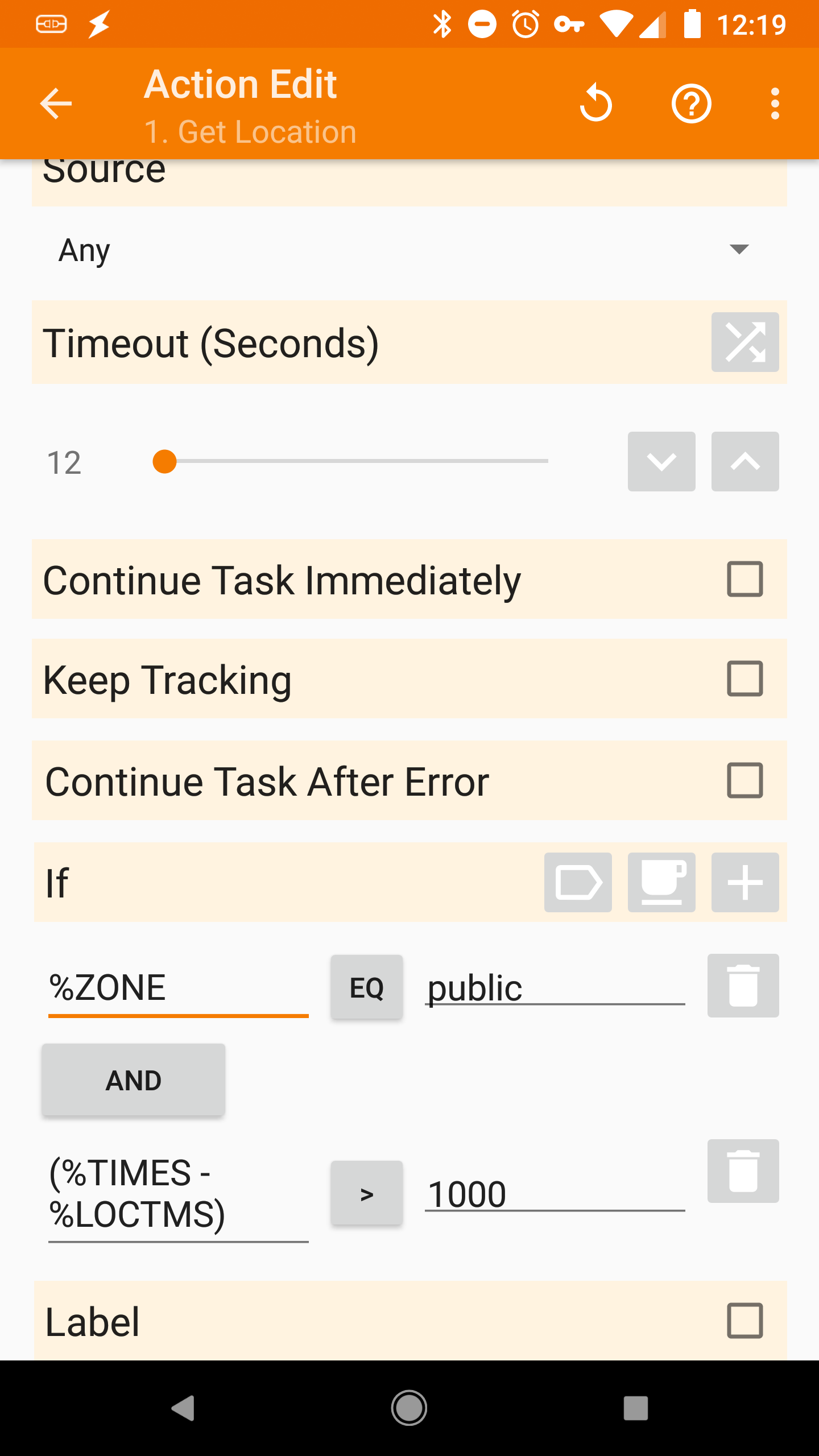
Now create the task that will run with the profile. For the first Action use “Get Location”
Set the source to Any and set the timeout lower (I used 12 seconds) so that if you can’t get the location it isn’t going to drain your battery. You can also prevent it from getting the location again if it already recently updated. Now, Set an “if” conditional using (%TIMES – %LOCTMS) > 1000 ( substitute in your own choice for the number of seconds since the last update.
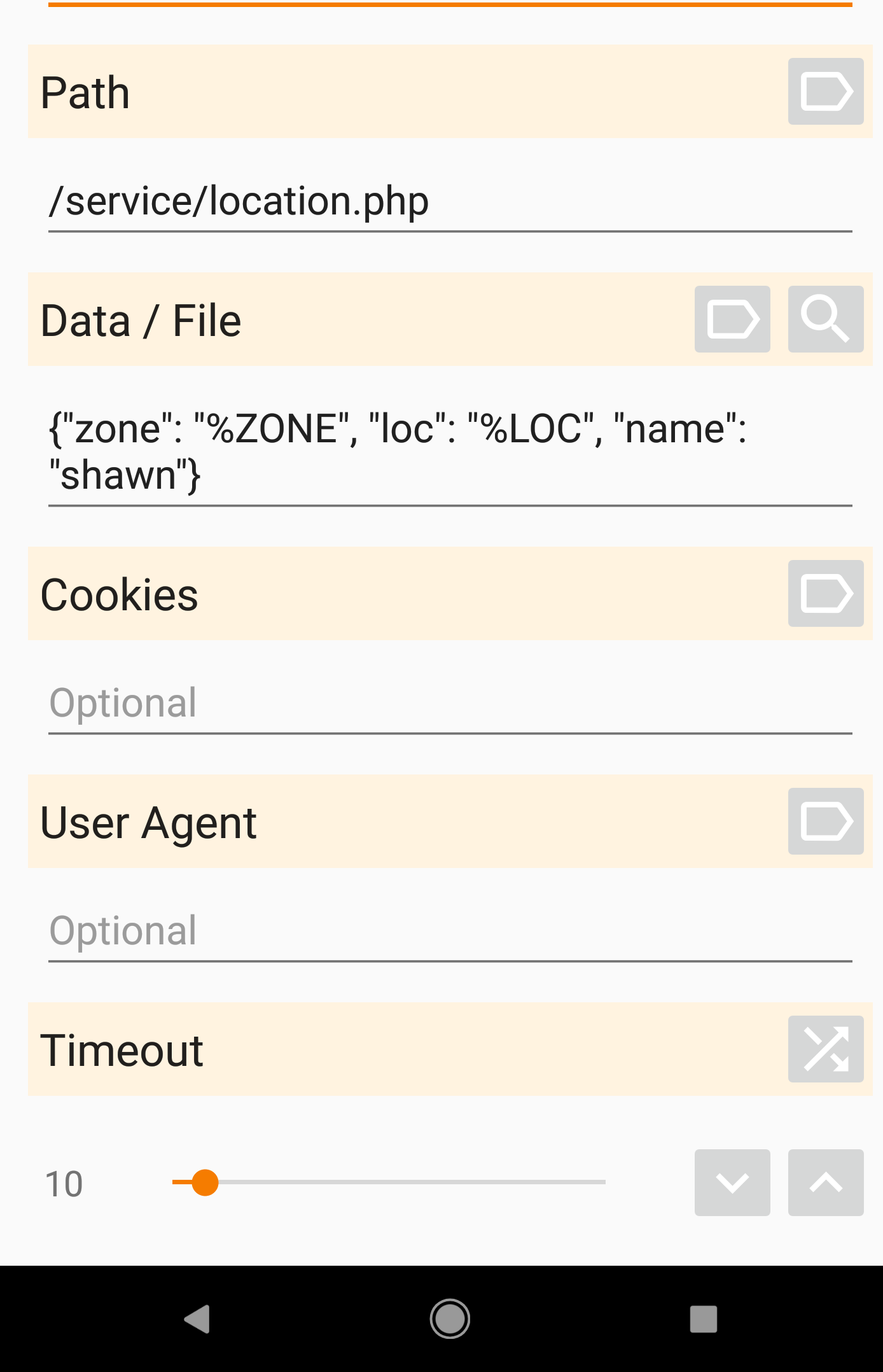
For the 2nd action of the task set it to an HTTP Post (found in the NET category). Use the url endpoint that you designated for this. Under Data/File use a json representation of the data that you want to POST. I use 3 different things: “zone”, “loc”, and “name”. You can probably just use 2 loc and name. For me zone can be “home”, “work” or “public” which is just a variable that gets set depending on what wifi network I’m on (or not on). Make sure to also set your content type to “application/json”.
Set Up Your Endpoint
Here you really have the freedom to use whatever language you want. I’m most comfortable with PHP so that is what I use. So in my text editor I have saved something that looks about like this for the filename /service/location.php:
$input = file_get_contents('php://input');
if(isJson($input)){
	$data = json_decode($input, true);
}

if($data['loc'] && $data['zone'] && $data['name']){

	$arr = explode(',', $data['loc']);
	if(is_array($arr) && array_key_exists("0", $arr)){
		$lat = $arr[0];
	}else{
		$lat = 0;
	}

	if(is_array($arr) && array_key_exists("1", $arr)){
		$lon = $arr[1];
	}else{
		$lon = 0;
	}


	$query = "
		INSERT INTO
		`locs` (
		            `id`,
		            `stamp`,
		            `zone`,
		            `latitude`,
		            `longitude`,
		            `name`
		) VALUES (
			NULL,
			NOW(),
			'".$data['zone']."',
			'".$lat."',
			'".$lon."',
			'".$data['name')."'
		)
	";

	mysqli_query($dbh, $query);

}
This is a basic example, and doesn’t match with how I’ve done things entirely because I use my own internal database functions. I just wanted to provide an example showing the data being saved to a database table. Now that the data is being stored, run some tests in Tasker or wait until the next poll to see if the data is being inserted. If it is you can consider moving on to the next part.
Creating Your App in DialogFlow
Go to dialogflow.com, creating and account if you have not already. Then “Go to Console”. Create a new project. Under the “Fulfillment” settings on the left specify a url on the same domain that you’d like to handle your communications with Google Assistant. Use any authentication or headers that you’d like. Now click save.
Go to Entities in the left. Create one for “person” or “people” whatever you want to call it. This is going to act as a variable for the person’s name.
Go to “Intents” next and create a new one called “How far away is spouse” or similar name. Fill in different ways to say the same things. Highlight where the variables are in each phrase and set them to match what they are. In my example I’ve attempted to get the device location, but so far I haven’t been successful in really getting that piece to work. So while it is in my example I’ve statically define the latitude and longitude of my house.
Make sure you check “Use Webhook” for the fulfilment option and I would also check “End Conversation” under the Google Assistant options, otherwise you’ll be stuck within the scope of your app in Google Assistant unless you tell Assistant to “cancel” or otherwise break out of the app.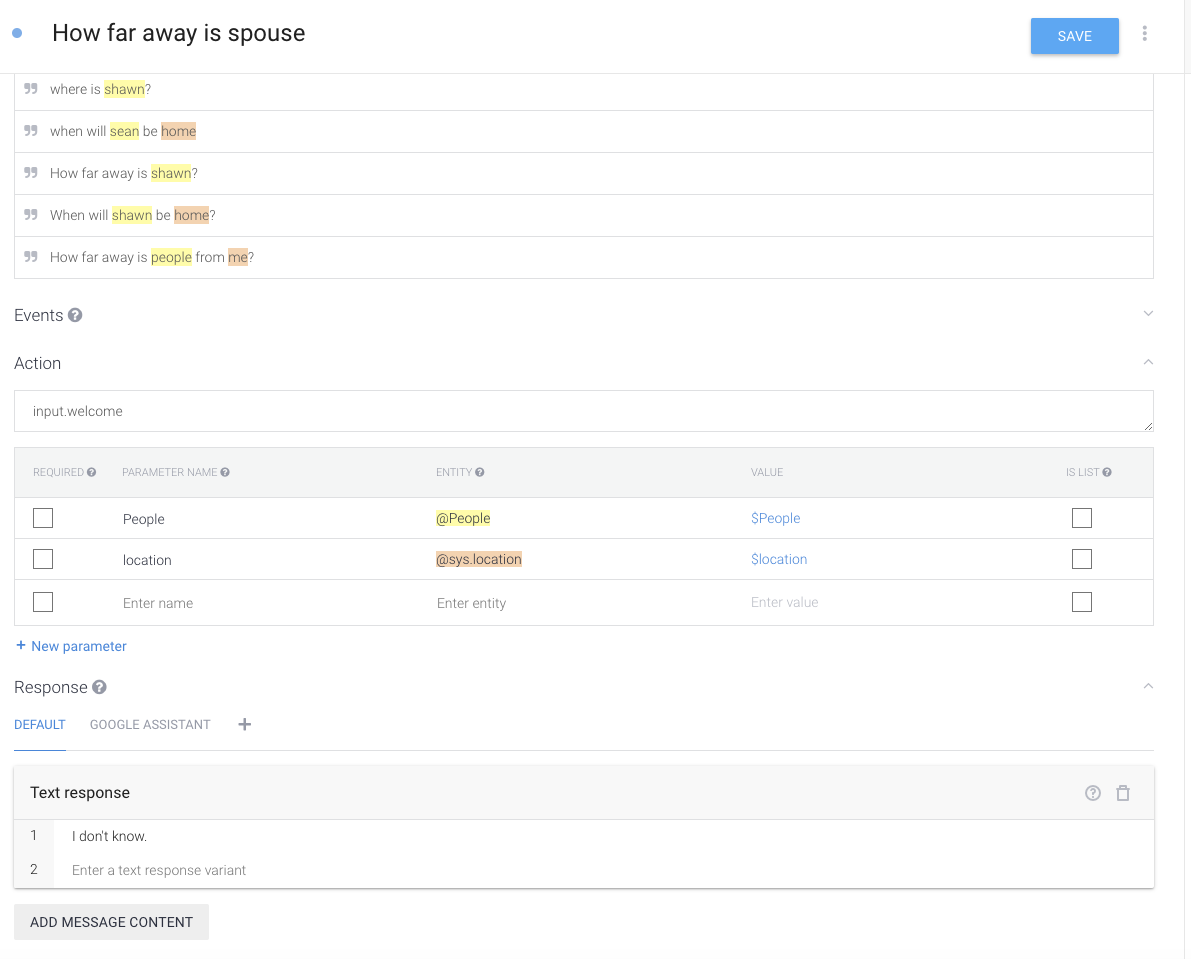
That should be the basics of the communication that you’ll have with Assistant. Next go to the integrations section on the left. And manage settings for the Google Assistant integration. Then “Manage Assistant App”. Name your app something meaningful to you. To communicate with it you’ll need to say “Hey Google, talk to [App Name]” or “Hey Google, Ask [App Name] [action or question]”. Your App does not need to be published for you to be able to communicate with it. You’ll have sandbox access to your own apps. I do not recommend publishing an app that you only intend to use personally, especially something like this where personal info is involved.
Setting Up Your Assistant Endpoint
The final step is setting up the webhook endpoint. This url is where the communication happens between your server and google assistant. I’d recommend getting the output of the POST request initially so that you can see what it looks like. Next you should setup some case statements to look at different intentId’s so that this endpoint url can handle all of the conversations for your app.
Once that is done you’ll want to read the last location of the particular person that you are querying. You can setup whatever language/pronouns you want but the end goal will be to use Google’s Distance Matrix api to calculate the distance/time.
$person = strtolower($params['People']);
$location = strtolower($params['location']);

switch(strtolower($person)){
	case "sean":
	case "shawn":
	case "shaun":
		$person = "Shawn";
		$gender_pronoun = "he";

	break;
	case "katie":
		$person = "Katie";
		$gender_pronoun = "she";

	break;

}


$lat = "[insert home lat here]"
$long = "[insert home long here]"


//get last known location for user
$qid = mysqli_query($dbh, "
	SELECT *
	FROM `locs`
	WHERE `name` = '$person'
	ORDER BY `stamp` DESC
	LIMIT 1
");

if($qid){
	$last_known = mysqli_fetch_array($qid);
}

if(is_array($last_known)){
	switch(strtolower($last_known['zone'])){
		case "home";
			$response['speech'] = "{$person} is home.";
		break;
		case "work";
			$distance = getDrivingDistance($lat, $long, $last_known['latitude'], $last_known['longitude']);
			$response['speech'] = "{$person} is at work. If {$gender_pronoun} left right now {$gender_pronoun} would be home in about {$distance['time']}";
		break;
		case "public";
			$distance = getDrivingDistance($lat, $long, $last_known['latitude'], $last_known['longitude']);


			$response['speech'] = "{$person} is {$distance['time']} from you.";

			if(($distance['value'] / 60) <= 3){
				$response['speech'] = "{$person} is here.";
			}
		break;
		default:
			$distance = getDrivingDistance($lat, $long, $last_known['latitude'], $last_known['longitude']);
			$response['speech'] = "{$person} is {$distance['time']} from you.";

			if(($distance['value'] / 60) <= 3){ $response['speech'] = "{$person} is here."; } break; } }else{ $response = [ "speech" => "I'm not sure where {$person} is."
	];

}

header('Content-type: application/json');
echo json_encode($response);
The getDrivingDistance function definition looks something like this:
function getDrivingDistance($lat1, $long1, $lat2, $long2){
	$url = "https://maps.googleapis.com/maps/api/distancematrix/json?origins=".$lat1.",".$long1."&destinations=".$lat2.",".$long2."&mode=driving&language=en-US&units=imperial&key=[insert key here]";
	$ch = curl_init();
	curl_setopt($ch, CURLOPT_URL, $url);
	curl_setopt($ch, CURLOPT_RETURNTRANSFER, 1);
	curl_setopt($ch, CURLOPT_SSL_VERIFYHOST, 0);
	curl_setopt($ch, CURLOPT_SSL_VERIFYPEER, 0);
	$response = curl_exec($ch);
	curl_close($ch);
	$res = json_decode($response, true);
	$dist = $res['rows'][0]['elements'][0]['distance']['text'];
	$time = $res['rows'][0]['elements'][0]['duration']['text'];
	$value = $res['rows'][0]['elements'][0]['duration']['value'];

	return array('distance' => $dist, 'time' => $time, 'value' => $value);
}
With any luck now you should be able to ask Google where your spouse is. Be sure to add shortcuts in the google home app if you don’t want to add the part where you “ask [app name]” or “talk to [app name]”. Once the shorcut is established, you can speak to Google a little more naturally.
Hope this helps!